Ansible_Role_Template_Example

Ansible_Role_Template_Example

Ansible_Role_Template_Example

In this example, I am using RHEL7 with below configuration.

[root@feenixdv apache_ntp]# ansible --version
ansible 2.7.5
  config file = /etc/ansible/ansible.cfg
  configured module search path = [u'/root/.ansible/plugins/modules', u'/usr/share/ansible/plugins/modules']
  ansible python module location = /usr/lib/python2.7/site-packages/ansible
  executable location = /usr/bin/ansible
  python version = 2.7.5 (default, Aug  2 2016, 04:20:16) [GCC 4.8.5 20150623 (Red Hat 4.8.5-4)]

I am creating below task using roles and template.

  1. Copy customize “resolve.conf” and “ntp.conf” on target servers.
  2. Install Apache and copy customize “index.html” on target servers.

Here I am creating two roles inside “/etc/ansible/roles/apache_ntp”.

  1. Common
  2. web

To create role and template structure use “ansible-galaxy" command.

[root@feenixdv apache_ntp]# ansible-galaxy init /etc/ansible/roles/apache_ntp/common  --offline
/etc/ansible/roles/apache_ntp/common  was created successfully

[root@feenixdv apache_ntp]# ansible-galaxy init /etc/ansible/roles/apache_ntp/web  --offline
/etc/ansible/roles/apache_ntp/web  was created successfully

Finally, we have below the directory structure for common.

[root@feenixdv apache_ntp]# pwd
/etc/ansible/roles/apache_ntp
[root@feenixdv apache_ntp]# tree common/
common/
├── defaults
│   └── main.yml
├── files
├── handlers
│   └── main.yml
├── meta
│   └── main.yml
├── README.md
├── tasks
│   └── main.yml
├── templates
│   ├── ntp.conf
│   └── resolv.conf
├── tests
│   ├── inventory
│   └── test.yml
└── vars
    └── main.yml
8 directories, 10 files

And below directory structure for the web.

[root@feenixdv apache_ntp]# pwd
/etc/ansible/roles/apache_ntp

[root@feenixdv apache_ntp]# tree web/
web/
├── defaults
│   └── main.yml
├── files
│   └── index.html
├── handlers
│   └── main.yml
├── meta
│   └── main.yml
├── README.md
├── tasks
│   └── main.yml
├── templates
├── tests
│   ├── inventory
│   └── test.yml
└── vars
    └── main.yml
8 directories, 9 files

For common roles:-

For “common/tasks/main.yml”

[root@feenixdv apache_ntp]# cat common/tasks/main.yml
---
- name: Configure DNS client
  template: src=resolv.conf dest=/etc/resolv.conf
  tags: dns

- name: Install NTP
  yum: name=ntp state=present
  tags: ntp

- name: Copy NTP file
  template: src=ntp.conf dest=/etc/ntp.conf
  tags: ntp
  notify: restart ntp service

For “common/templates/resolv.conf”

[root@feenixdv apache_ntp]# cat common/templates/resolv.conf
# Generated by NetworkManager
search {{ dnsserver }}
nameserver {{ dnsserver }}

Here “dnsserver” variable picked from “group_vars/all” which is looking like below.

[root@feenixdv apache_ntp]# pwd
/etc/ansible/roles/apache_ntp
[root@feenixdv apache_ntp]# cat group_vars/all
---

dnsserver: 8.8.8.8
ntpserver: 192.168.40.177

For “common/templates/ntp.conf”

[root@feenixdv apache_ntp]# cat common/templates/ntp.conf
##anisible managed file
driftfile /var/lib/ntp/drift
restrict 127.0.0.1
restrict -6 ::1

server {{ ntpserver  }}
includefile /etc/ntp/crypto/pw
keys /etc/ntp/keys

Here “ntpserver” variable picked from “group_vars/all”

For “common/handlers/main.yml”

[root@feenixdv apache_ntp]# cat common/handlers/main.yml
---
# handlers file for apache_ntp/common
- name: restart ntp service
  service: name=ntpd state=started

For web roles:-

For “web/tasks/main.yml”

[root@feenixdv apache_ntp]# cat web/tasks/main.yml
---
# tasks file for apache_ntp/web
- name: Install apache packages
  yum: name={{ item }} state=present
  with_items:
    - httpd
    - httpd-tools

- name: Copy apache index page
  copy: src=index.html dest=/var/www/html/index.html
  tags: apache
  notify: restart apache service

For “web/files/index.html”

[root@feenixdv apache_ntp]# cat web/files/index.html
Hello ansible

For “web/handlers/main.yml”

[root@feenixdv apache_ntp]# cat web/handlers/main.yml
---
# handlers file for apache_ntp/common
- name: restart apache service
  service: name=httpd state=started

Now configure host file and main.yml to call role one by one.

[root@feenixdv apache_ntp]# pwd
/etc/ansible/roles/apache_ntp
[root@feenixdv apache_ntp]# cat hosts
[all]
192.168.40.178
192.168.40.179
[web]
192.168.40.178

[root@feenixdv apache_ntp]# cat main.yml
---
- hosts: all
  tasks:

- name: Apply common configuration
  hosts: all
  user: root
  become: yes
  tasks:
  roles:
    - common

- name: Install and configure apache web server
  hosts: web
  user: root
  become: yes
  tasks:
  roles:
    - web

Now check syntax.

[root@feenixdv apache_ntp]# ansible-playbook main.yml -i hosts --syntax-check
playbook: main.yml

Looking good

Now launch the play book.

[root@feenixdv apache_ntp]# ansible-playbook main.yml -i hosts

PLAY [all] *********************************************************************************************************************************************************************************************

TASK [Gathering Facts] *********************************************************************************************************************************************************************************
ok: [192.168.40.178]

ok: [192.168.40.179]

PLAY [Apply common configuration] **********************************************************************************************************************************************************************
TASK [Gathering Facts] *********************************************************************************************************************************************************************************
ok: [192.168.40.179]
ok: [192.168.40.178]

TASK [common : Configure DNS client] *******************************************************************************************************************************************************************
changed: [192.168.40.179]
changed: [192.168.40.178]

TASK [common : Install NTP] ****************************************************************************************************************************************************************************
ok: [192.168.40.178]
ok: [192.168.40.179]

TASK [common : Copy NTP file] **************************************************************************************************************************************************************************
changed: [192.168.40.179]
changed: [192.168.40.178]

RUNNING HANDLER [common : restart ntp service] *********************************************************************************************************************************************************
ok: [192.168.40.178]
ok: [192.168.40.179]

PLAY [Install and configure apache web server] ********************************************************************************************************************************************************
TASK [Gathering Facts] *********************************************************************************************************************************************************************************
ok: [192.168.40.178]
TASK [web : Install apache packages] *******************************************************************************************************************************************************************
[DEPRECATION WARNING]: Invoking "yum" only once while using a loop via squash_actions is deprecated. Instead of using a loop to supply multiple items and specifying `name: "{{ item }}"`, please use

`name: ['httpd', 'httpd-tools']` and remove the loop. This feature will be removed in version 2.11. Deprecation warnings can be disabled by setting deprecation_warnings=False in ansible.cfg.
changed: [192.168.40.178] => (item=[u'httpd', u'httpd-tools'])

TASK [web : Copy apache index page] ********************************************************************************************************************************************************************
changed: [192.168.40.178]
RUNNING HANDLER [web : restart apache service] *********************************************************************************************************************************************************
changed: [192.168.40.178]

PLAY RECAP *********************************************************************************************************************************************************************************************
192.168.40.178             : ok=10   changed=5    unreachable=0    failed=0

192.168.40.179             : ok=6    changed=2    unreachable=0    failed=0

Looking good.

Check action.

For “192.168.40.179  “

[root@localhost ~]# ifconfig |grep inet
        inet 192.168.40.179  netmask 255.255.255.0  broadcast 192.168.40.255

        inet6 fe80::25c:a552:e7aa:8f2  prefixlen 64  scopeid 0x20<link>

        inet6 fe80::9e73:c84:139c:c56c  prefixlen 64  scopeid 0x20<link>

        inet 127.0.0.1  netmask 255.0.0.0

        inet6 ::1  prefixlen 128  scopeid 0x10<host>

[root@localhost ~]# cat /etc/resolv.conf
# Generated by NetworkManager
search 8.8.8.8
nameserver 8.8.8.8
[root@localhost ~]# cat /etc/ntp.conf
##anisible managed file
driftfile /var/lib/ntp/drift
restrict 127.0.0.1
restrict -6 ::1
server 192.168.40.177
includefile /etc/ntp/crypto/pw
keys /etc/ntp/keys

For “192.168.40.178 “

Apache service accessible


Grafana_Blackbox_Exporter

Grafana_Blackbox_Exporter

blackbox_exporter


The blackbox exporter allows blackbox probing of endpoints over HTTP, HTTPS, DNS, TCP, and ICMP. Data use by “Prometheus” and using these data we can create graph into Grafana.


Download blackbox_exporter and extract it.

[root@feenixdv ~]# wget https://github.com/prometheus/blackbox_exporter/releases/download/v0.13.0/blackbox_exporter-0.13.0.linux-amd64.tar.gz
[root@feenixdv ~]# tar zxvf blackbox_exporter-0.13.0.linux-amd64.tar.gz
blackbox_exporter-0.13.0.linux-amd64/
blackbox_exporter-0.13.0.linux-amd64/LICENSE
blackbox_exporter-0.13.0.linux-amd64/blackbox.yml
blackbox_exporter-0.13.0.linux-amd64/NOTICE
blackbox_exporter-0.13.0.linux-amd64/blackbox_exporter
[root@feenixdv ~]# cd blackbox_exporter-0.13.0.linux-amd64/


Now update ” blackbox.yml”.

Here I am going to put URL monitoring through blackbox.

[root@feenixdv blackbox_exporter-0.13.0.linux-amd64]# cat blackbox.yml

.
.
url_check:
    prober: http
    # timeout: 5s
    http:
      valid_http_versions: ["HTTP/1.1", "HTTP/2"]
      valid_status_codes: []
      method: GET
      no_follow_redirects: false
      tls_config:
        insecure_skip_verify: false
      preferred_ip_protocol: "ipv4"
      fail_if_matches_regexp:
        - "Could not connect to database"

Where “url_check” is module name which is used in Prometheus (Prometheus.yml).

Now launch blackbox_exporter with customizing YML file.

[root@feenixdv blackbox_exporter-0.13.0.linux-amd64]# ./blackbox_exporter --config.file="blackbox.yml" &
level=info ts=2019-01-24T04:44:50.914686848Z caller=main.go:215 msg="Starting blackbox_exporter" version="(version=0.13.0, branch=HEAD, revision=1cfb7512daa7e100abb32037996c8f805990d813)"
level=info ts=2019-01-24T04:44:50.915308706Z caller=main.go:228 msg="Loaded config file"
level=info ts=2019-01-24T04:44:50.915427103Z caller=main.go:332 msg="Listening on address" address=:9115

By default its start on “9115” port.

Blackbox is running or not, we can check using below URL.

http://192.168.40.177:9115/probe?module=url_check&target=http://www.localhost

Now update “prometheus.yml” to check URL.

.
.
- job_name: "Blackbox URL check"
    metrics_path: /probe
    params:
      module: [url_check]
    static_configs:
      - targets:
          - http://google.com
          - https://feenixdv.com
          - http://bibhuti_narayan.com
    relabel_configs:
      - source_labels: [__address__]
        target_label: __param_target
      - source_labels: [__param_target]
        target_label: instance
      - target_label: __address__
        replacement: 192.168.40.177:9115

Now check Prometheus GUI.

Here we can see URL monitoring working fine.

Redirect_Console_Output

Redirect_Console_Output

Redirect console output to another console.

First list out open console(pts).

[root@localhost ~]# ll /dev/pts/
total 0
crw--w----. 1 root tty  136, 0 Jan 22 21:09 0
crw--w----. 1 root tty  136, 1 Jan 22 08:53 1
crw--w----. 1 root tty  136, 2 Jan 22 21:04 2
crw--w----. 1 root tty 136, 3 Jan 22 21:04  3
c---------. 1 root root   5, 2 Jan 21 17:11 ptmx

From the output, we can see we have 4 pts terminal (0, 1, 2 and 3).

Here I am going to redirect output to “pts/3”.

[root@localhost ~]# /bin/bash > /dev/pts/3

 In the screenshot, we can see command output redirect to “pts3”

Linux_Performance_Tuning

Linux_Performance_Tuning

Linux Performance tuning


Using tuned profile we can tune. Tuned is a daemon that uses udev to monitor connected devices and statically and dynamically tunes system settings according to a selected profile. Tuned is distributed with a number of predefined profiles for common use cases like high throughput, low latency, or power save. It is possible to modify the rules defined for each profile and customize how to tune a particular device.

For tuning Linux we have various tools.


Using “tuned-adm”  command line tool for switching between different tuning profiles.

To list out all the available profile.

[root@feenixdv docker]# tuned-adm list
Available profiles:
- balanced                    - General non-specialized tuned profile
- desktop                     - Optmize for the desktop use-case
- latency-performance         - Optimize for deterministic performance at the cost of increased power consumption
- network-latency             - Optimize for deterministic performance at the cost of increased power consumption, focused on low latency network performance
- network-throughput          - Optimize for streaming network throughput.  Generally only necessary on older CPUs or 40G+ networks.
- powersave                   - Optimize for low power consumption
- throughput-performance      - Broadly applicable tuning that provides excellent performance across a variety of common server workloads.  This is the default profile for RHEL7.
- virtual-guest               - Optimize for running inside a virtual guest.
- virtual-host                - Optimize for running KVM guests
Current active profile: virtual-guest

The main configuration file of tuned are located under «/etc/tuned/” and “/usr/lib/tuned/”

[root@feenixdv ~]# ll /etc/tuned/
total 12
-rw-r--r--. 1 root root  14 Jan 21 22:29 active_profile
-rw-r--r--. 1 root root 779 Oct 17  2014 bootcmdline
-rw-r--r--. 1 root root 387 Mar  6  2015 tuned-main.conf
[root@feenixdv ~]# ll /usr/lib/tuned/
total 16
drwxr-xr-x. 2 root root    23 Jan 22  2019 balanced
drwxr-xr-x. 2 root root    23 Jan 22  2019 desktop
-rw-r--r--. 1 root root 12147 Oct 15  2014 functions
drwxr-xr-x. 2 root root    23 Jan 22  2019 latency-performance
drwxr-xr-x. 2 root root    23 Jan 22  2019 network-latency
drwxr-xr-x. 2 root root    23 Jan 22  2019 network-throughput
drwxr-xr-x. 2 root root    39 Jan 22  2019 powersave
-rw-r--r--. 1 root root   601 Oct 17  2014 recommend.conf
drwxr-xr-x. 2 root root    23 Jan 22  2019 throughput-performance
drwxr-xr-x. 2 root root    23 Jan 22  2019 virtual-guest
drwxr-xr-x. 2 root root    23 Jan 22  2019 virtual-host

And profile configuration file look like.

[root@feenixdv ~]# cat /usr/lib/tuned/balanced/tuned.conf
#
# tuned configuration
#
[cpu]
governor=conservative
energy_perf_bias=normal


timeout=10


radeon_powersave=auto

[disk]
# Comma separated list of devices, all devices if commented out.
# devices=sda
alpm=medium_power

To check the profile effect we have “tuna” GUI tool. You can install from ISO image.

Test case with “balanced”

Test case with “desktop”

Test case with “latency-performance”

Test case with “network-throughput”

Test case with “powersave

Test case with “virtual-host”

Get tuned recommendation

To let tuned recommend you the best suitable profile for your system without changing any existing profiles and using the same logic as used during the installation, run the following command:

# tuned-adm recommend
virtual-guest


Create a custom tuned profile

# mkdir /etc/tuned/feenixdv
Create a new tuned.conf file for feenixdv, and insert new tuning info.
# vi /etc/tuned/feenixdv/tuned.conf
[main]
summary=This is a test tuned profile

[cpu]
force_latency=1

[vm]
transparent_hugepages=never

[sysctl]
kernel.sysrq=1
vm.nr_hugepages=4100
kernel.numa_balancing=0

[script]
script=/etc/tuned/feenixdv/myscript.sh

Here I have created a custom tuned profile which performs below list of functions

  • limit C-state usage to C1
  • disable transparent hugepages
  • allocate 4100 2MB static hugepages
  • disable automatic numa balancing
  • run an arbitrary shell script

The content of an example myscript.sh script:

#!/bin/sh
OPERATION=$1
if [ $OPERATION -eq "start" ];
    then
            touch /tmp/$OPERATION
else
            touch /tmp/$OPERATION
fi

Provide executable permission to the tuned profile

# chmod +x /etc/tuned/feenixdv/tuned.conf

Next, enable the new profile

# tuned-adm profile feenixdv

Check the currently active profile

# tuned-adm active


Prometheus-Grafana-Node_Exporter

Prometheus-Grafana-Node_Exporter

Prometheus-Grafana-Node_Exporter

To start with on Infra monitoring front – we are going to have below tools

Node Exporter: This is kind of plugin which needs to be installed on the machine where host monitoring needs to be done [ For technology monitoring, there are separate plugins which needs to be installed as well e.g. KAFKA, Mongo etc. ]
 
Prometheus DB: Prometheus DB will be configured to listen to data generated by Node Exporter based on configured frequency and store them. Prometheus also come with UI where you can explore data and run queries on top of them.
 
Grafana UI:  Because UI given by Prometheus is not good and configurable for different kind of dashboard – we are going to use ready UI where we can plugin Prometheus as data source and configure graphs on required data.


How these tools are collaborated to each other.


Here I am going to setup infra using Docker.

Download Docker images for “Prometheus” and  “grafana”

[root@feenixdv ~]# docker pull grafana/grafana
[root@feenixdv ~]# docker pull prom/prometheus
[root@feenixdv ~]# docker images
REPOSITORY                           TAG                 IMAGE ID            CREATED             SIZE
prom/prometheus                      latest              5517f7057e72        4 days ago          97.8MB
grafana/grafana                      latest              d0454da13c84        6 days ago          240MB
The main configuration file of “Prometheus” is “prometheus.yml” which is located under container in “/etc/prometheus/prometheus.yml” location. In this example, its mapped on the local volume “/opt/prometheus/prometheus.yml”.
Create local volume structure and file look like.


[root@feenixdv ~]# mkdir –p /opt/prometheus/
[root@feenixdv ~]# cat /opt/prometheus/prometheus.yml
# my global config
global:
  scrape_interval:     15s # Set the scrape interval to every 15 seconds. Default is every 1 minute.
  evaluation_interval: 15s # Evaluate rules every 15 seconds. The default is every 1 minute.
  # scrape_timeout is set to the global default (10s).
# Alertmanager configuration
alerting:
  alertmanagers:
  - static_configs:
    - targets:
      # - alertmanager:9093

# Load rules once and periodically evaluate them according to the global 'evaluation_interval'.
rule_files:
  # - "first_rules.yml"
  # - "second_rules.yml"
# A scrape configuration containing exactly one endpoint to scrape:
# Here it's Prometheus itself.
scrape_configs:
  # The job name is added as a label `job=<job_name>` to any timeseries scraped from this config.
  - job_name: 'prometheus'
    # metrics_path defaults to '/metrics'
    # scheme defaults to 'http'.
    static_configs:
    - targets: ['localhost:9090']
  - job_name: 'PromNet'
    static_configs:
      - targets: ['192.168.40.173:9100']
  - job_name: 'Docker'
    static_configs:
      - targets: ['192.168.40.174:9323']


Configure “Node Exporter”.

In my example “Node Exporter” configured on separate VM.

            IP:- 192.168.40.173

Download “Node Exporter” and start it. By default its used “9100” port.

[root@localhost ~]# wget  https://github.com/prometheus/node_exporter/releases/download/v0.17.0/node_exporter-0.17.0.linux- amd64.tar.gz
[root@localhost ~]# tar zxvf node_exporter-0.17.0.linux-amd64.tar.gz
[root@localhost ~]# cd node_exporter-0.17.0.linux-amd64/
[root@localhost node_exporter-0.17.0.linux-amd64]# ./node_exporter &
[1] 3000
[root@localhost node_exporter-0.17.0.linux-amd64]# INFO[0000] Starting node_exporter (version=0.17.0, branch=HEAD, revision=f6f6194a436b9a63d0439abc585c76b19a206b21)  source="node_exporter.go:82"

INFO[0000] Build context (go=go1.11.2, user=root@322511e06ced, date=20181130-15:51:33)  source="node_exporter.go:83"

INFO[0000] Enabled collectors:                           source="node_exporter.go:90"

INFO[0000]  - arp                                        source="node_exporter.go:97"

INFO[0000]  - bcache                                     source="node_exporter.go:97"

INFO[0000]  - bonding                                    source="node_exporter.go:97"

INFO[0000]  - conntrack                                  source="node_exporter.go:97"

INFO[0000]  - cpu                                        source="node_exporter.go:97"

INFO[0000]  - diskstats                                  source="node_exporter.go:97"

INFO[0000]  - edac                                       source="node_exporter.go:97"

INFO[0000]  - entropy                                    source="node_exporter.go:97"

INFO[0000]  - filefd                                     source="node_exporter.go:97"

INFO[0000]  - filesystem                                 source="node_exporter.go:97"

INFO[0000]  - hwmon                                      source="node_exporter.go:97"

INFO[0000]  - infiniband                                 source="node_exporter.go:97"

INFO[0000]  - ipvs                                       source="node_exporter.go:97"

INFO[0000]  - loadavg                                    source="node_exporter.go:97"

INFO[0000]  - mdadm                                      source="node_exporter.go:97"

INFO[0000]  - meminfo                                    source="node_exporter.go:97"

INFO[0000]  - netclass                                   source="node_exporter.go:97"

INFO[0000]  - netdev                                     source="node_exporter.go:97"

INFO[0000]  - netstat                                    source="node_exporter.go:97"

INFO[0000]  - nfs                                        source="node_exporter.go:97"

INFO[0000]  - nfsd                                       source="node_exporter.go:97"

INFO[0000]  - sockstat                                   source="node_exporter.go:97"

INFO[0000]  - stat                                       source="node_exporter.go:97"

INFO[0000]  - textfile                                   source="node_exporter.go:97"

INFO[0000]  - time                                       source="node_exporter.go:97"

INFO[0000]  - timex                                      source="node_exporter.go:97"

INFO[0000]  - uname                                      source="node_exporter.go:97"

INFO[0000]  - vmstat                                     source="node_exporter.go:97"

INFO[0000]  - xfs                                        source="node_exporter.go:97"

INFO[0000]  - zfs                                        source="node_exporter.go:97"

INFO[0000] Listening on :9100                            source="node_exporter.go:111"

Check “Node Exporter” working on port “9100”.

Now start both container.

Prometheus:-
            IP:- 192.168.40.174
            PORT:- 9090
Grafana:-
            IP:- 192.168.40.174
            PORT:- 3000
[root@feenixdv ~]# docker run -itd --name prometheus1 -v /opt/prometheus/prometheus.yml:/etc/prometheus/prometheus.yml -p 9090:9090  prom/Prometheus
[root@feenixdv ~]# docker run -itd --name grafana -p 3000:3000 grafana/grafana

Check container up or not.

[root@feenixdv ~]# docker ps –a
11e1168e0deb        grafana/grafana        "/run.sh"                3 hours ago         Up 3 hours                   0.0.0.0:3000->3000/tcp   grafana
e747177e9db4        prom/prometheus        "/bin/prometheus"        4 hours ago         Up 2 hours                   0.0.0.0:9090->9090/tcp   prometheus1

Now check “Prometheus” accessible on browser or not.

URL:- http://192.168.40.174:9090

Also check targets part. In the configuration we have same output which was configured inside” Prometheus.yml”

Now check “Grafana”

URL:- http://192.168.40.174:3000

Default login and password is “admin”.


First we need to configure data-sources.

Because our data source are Prometheus so select Prometheus as data source.  

Fill details of Prometheus to connect and fetch data.

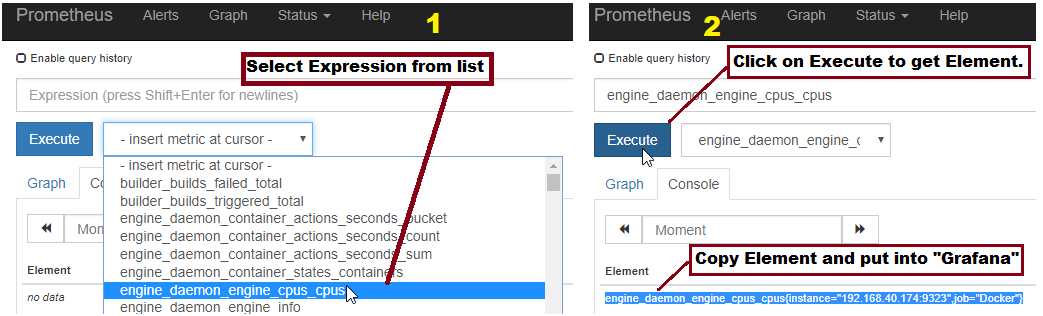
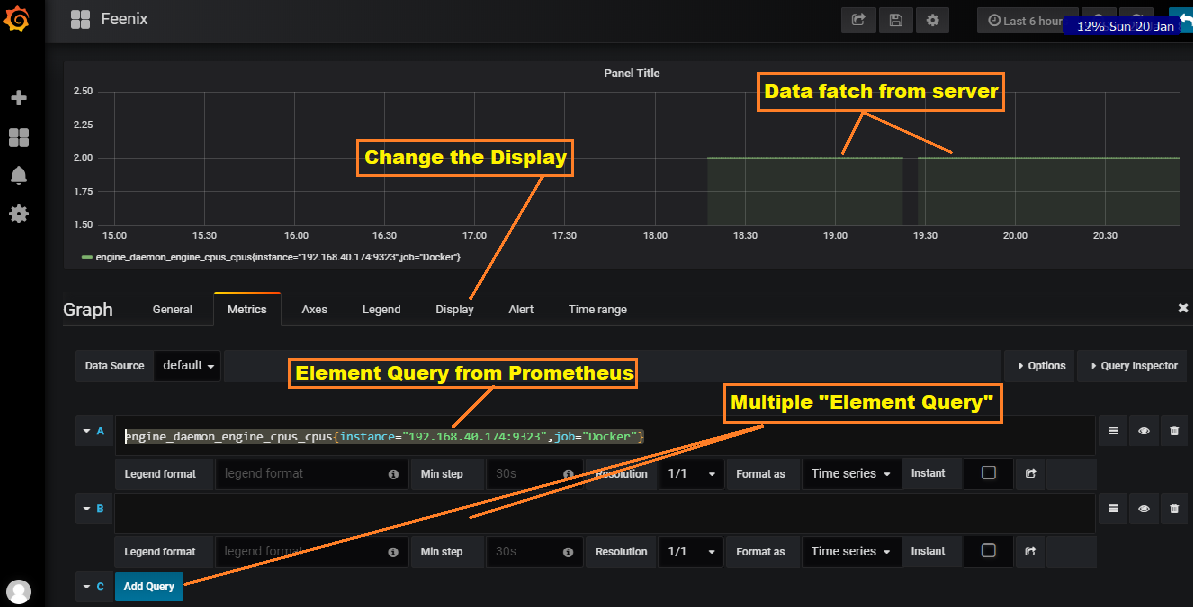
Once data source configured after that create graph. To create graph follow below screenshots.

Pick the query from Prometheus and put into Grafana


Add query string in Grafana.

Dashboard  look like this.


For Docker monitoring

for Docker monitoring we need to enable “metrices”. For enable create one file inside “/etc/docker”.

[root@feenixdv ~]# cat /etc/docker/daemon.json
{

                  "metrics-addr" : "192.168.40.174:9323",

                    "experimental" : true
}

Restart docker service and daemon.

[root@feenixdv ~]# systemctl daemon-reload
[root@feenixdv ~]# systemctl restart docker.service

Now Docker metrics are accessible on below URL.

http://192.168.40.174:9323/metrics

To monitor put required query string on “Grafana”.

Docker_Static_IP_To_Container

Docker_Static_IP_To_Container

Docker_Static_IP_To_Container

Why static IP to the container?

Each time when we restart container, IP address changed. Infect if we restart container in different sequences, its changed so to resolve this confliction we set static IP to the container.

For the testing here i am going to create two containers with the name of …

  1. test11
  2. test12

Creating a container with "centos" image and pass below parameter.

[root@feenixdv conf]# docker run -itd --privileged --name test11 -p 81:80 centos
1ea63b664f6f12c564fe72d9378a1b3bd1fad1115c897e69959394fca53836ce
[root@feenixdv conf]# docker run -itd --privileged --name test12 -p 82:80 centos
77cd950fcae3b204e26938453cb718eea8840cca5be96979bf99b2a3fdfdd811
[root@feenixdv conf]# docker ps -a
CONTAINER ID        IMAGE               COMMAND                  CREATED             STATUS              PORTS                    NAMES
77cd950fcae3        centos              "/bin/bash"              14 seconds ago      Up 14 seconds       0.0.0.0:82->80/tcp       test12
1ea63b664f6f        centos              "/bin/bash"              27 seconds ago      Up 24 seconds       0.0.0.0:81->80/tcp       test11

Now check the IP address of both containers.

[root@feenixdv conf]# docker inspect test11 |grep IPAddress
            "SecondaryIPAddresses": null,
            "IPAddress": "172.17.0.3",
                    "IPAddress": "172.17.0.3",
[root@feenixdv conf]# docker inspect test12 |grep IPAddress
            "SecondaryIPAddresses": null,
            "IPAddress": "172.17.0.4",
                    "IPAddress": "172.17.0.4",

Now going to stop and start the container. But I am not starting the container in the same sequence. First start "test12" then "test11".

                    
[root@feenixdv conf]# docker stop test11 test12
test11
test12
[root@feenixdv conf]# docker start test12 test11
test12
test11
[root@feenixdv conf]# docker inspect test11 |grep IPAddress
            "SecondaryIPAddresses": null,
            "IPAddress": "172.17.0.4",
                    "IPAddress": "172.17.0.4",
[root@feenixdv conf]# docker inspect test12 |grep IPAddress
            "SecondaryIPAddresses": null,
            "IPAddress": "172.17.0.3",
                    "IPAddress": "172.17.0.3",

 Here we can see IP sequence changes. test11 IP shifted into test12.

To resolve this, I am going to create my own bridge network with the name of "feenix_network", with below information.

               
[root@feenixdv conf]# docker network create --driver bridge --subnet 172.19.0.0/16 --gateway 172.19.0.1 feenix_network
2eff5c11b84832f422d2f0ea2996496ceb5396ae5cf8a67d129d061e4efa6c8a
[root@feenixdv conf]# docker network ls
NETWORK ID          NAME                DRIVER              SCOPE
38b84019872b        bridge              bridge              local
2eff5c11b848        feenix_network      bridge              local
c1c37ffd2bc3        host                host                local
855f2c69ad58        none                null                local

Now assign IP to both container.

[root@feenixdv conf]# docker network connect --ip 172.19.0.2 feenix_network test11
[root@feenixdv conf]# docker network connect --ip 172.19.0.3 feenix_network test12
[root@feenixdv conf]# docker inspect test11 |grep IPAddress
            "SecondaryIPAddresses": null,
            "IPAddress": "172.17.0.4",
                    "IPAddress": "172.17.0.4",
                    "IPAddress": "172.19.0.2",

Here we can see, two IP address assign to test11 and test12.

Release old IP with below command.

[root@feenixdv conf]# docker network disconnect bridge test11
[root@feenixdv conf]# docker network disconnect bridge test12
[root@feenixdv conf]# docker inspect test11 |grep IPAddress
            "SecondaryIPAddresses": null,
            "IPAddress": "",
                    "IPAddress": "172.19.0.2",
[root@feenixdv conf]# docker inspect test12 |grep IPAddress
            "SecondaryIPAddresses": null,
            "IPAddress": "",
                    "IPAddress": "172.19.0.3",

Here we can see everything is ok. All container have new IP.

Now going to test with restart container in different sequences.

[root@feenixdv conf]# docker stop test11 test12
test11
test12
[root@feenixdv conf]# docker start test12 test11
test12
test11
[root@feenixdv conf]# docker inspect test11 |grep IPAddress
            "SecondaryIPAddresses": null,
            "IPAddress": "",
                    "IPAddress": "172.19.0.2",
[root@feenixdv conf]# docker inspect test12 |grep IPAddress
            "SecondaryIPAddresses": null,
            "IPAddress": "",
                    "IPAddress": "172.19.0.3",

                    
         Done.   

Docker_Jenkins_Installation_Inside_Container

Docker_Jenkins_Installation_Inside_Container

Docker_Jenkins_Installation_InSide_Container

Inside the container, first, install perquestery ( JAVA )

[root@a5f159e16af7 /]# yum install java-1.8.0-openjdk-devel

Download Jenkins repo for YUM.

[root@a5f159e16af7 /]# curl --silent --location http://pkg.jenkins-ci.org/redhat-stable/jenkins.repo | tee /etc/yum.repos.d/jenkins.repo
[jenkins]
name=Jenkins-stable
baseurl=http://pkg.jenkins.io/redhat-stable
gpgcheck=1
[root@a5f159e16af7 /]# cat /etc/yum.repos.d/jenkins.repo
[jenkins]
name=Jenkins-stable
baseurl=http://pkg.jenkins.io/redhat-stable
gpgcheck=1

Import key (gpg key) for installation.

[root@a5f159e16af7 /]# rpm --import https://jenkins-ci.org/redhat/jenkins-ci.org.key

Install Jenkins using YUM.

[root@a5f159e16af7 /]# yum install jenkins
Loaded plugins: fastestmirror, ovl
Loading mirror speeds from cached hostfile
 * base: mirror.nbrc.ac.in
 * extras: mirror.nbrc.ac.in
 * updates: mirror.nbrc.ac.in
jenkins                                                                                                                                                              | 2.9 kB  00:00:00
jenkins/primary_db                                                                                                                                                   |  26 kB  00:00:00
Resolving Dependencies
--> Running transaction check
---> Package jenkins.noarch 0:2.150.1-1.1 will be installed
--> Finished Dependency Resolution

Dependencies Resolved

============================================================================================================================================================================================
 Package                                     Arch                                       Version                                           Repository                                   Size
============================================================================================================================================================================================
Installing:
 jenkins                                     noarch                                     2.150.1-1.1                                       jenkins                                      72 M

Transaction Summary
============================================================================================================================================================================================
Install  1 Package

Total download size: 72 M
Installed size: 72 M
Is this ok [y/d/N]: y
Downloading packages:
jenkins-2.150.1-1.1.noarch.rpm                                                                                                                                       |  72 MB  00:00:41
Running transaction check
Running transaction test
Transaction test succeeded
Running transaction
  Installing : jenkins-2.150.1-1.1.noarch                                                                                                                                               1/1
  Verifying  : jenkins-2.150.1-1.1.noarch                                                                                                                                               1/1

Installed:
  jenkins.noarch 0:2.150.1-1.1

Complete!

Now enable and start service.

During this you maybe some issue with service enable/start.

[root@a5f159e16af7 /]# systemctl enable jenkins
jenkins.service is not a native service, redirecting to /sbin/chkconfig.

[root@a5f159e16af7 /]# systemctl restart jenkins
Job for jenkins.service failed because the control process exited with error code. See "systemctl status jenkins.service" and "journalctl -xe" for details.

[root@a5f159e16af7 /]# /etc/init.d/jenkins start
/etc/init.d/jenkins: line 59: /etc/init.d/functions: No such file or directory

To resolve this issue install "initscripts".

[root@a5f159e16af7 yum.repos.d]# yum install -y initscripts
[root@3b5e4744c969 /]# systemctl start jenkins
[root@3b5e4744c969 /]# systemctl enable jenkins
jenkins.service is not a native service, redirecting to /sbin/chkconfig.
Executing /sbin/chkconfig jenkins on
[root@3b5e4744c969 /]# /sbin/chkconfig jenkins on

Now access Jenkins on default port 8080.

First time you need to set admin password. For that you run below command to see encrypted passowrd.

[root@feenixdv conf]# docker exec -it a5f159e16af7 cat /var/lib/jenkins/secrets/initialAdminPassword

Past output on login windows and set new password for admin. at the end you have login screen.


Ansible_LVM_Creation

Ansible_LVM_Creation

LVM creation using playbook.

Lab setup:-

Ansible Server:- 192.168.40.147 feenixdv
Node IP:- 192.168.40.148 web2

Task:-

Create LVM with below information.

Physical Volume:- /dev/sdb1, /dev/sdb2( Must Present)
Volume Group:- Vg0
Logical Volume:- lv0
File system:- EXT4
Mount point:- /data

Node setting:-

IP:- 192.168.40.146
Disk information:-
[root@web1 ~]# fdisk -l /dev/sdb
 
   Device Boot      Start         End      Blocks   Id  System
/dev/sdb1            2048     2099199     1048576   83  Linux
/dev/sdb2         2099200     4196351     1048576   83  Linux  


Playbook look like

Run playbook.

On Target node "192.168.40.146" we can see all action done.

yes

Download Ansible file.


Ansible_Inventory_KeyLess_Auth

Ansible_Inventory_KeyLess_Auth

Ansible_Inventory_KeyLess_Auth

After Ansible installation, you need to follow some basic steps.

  1. Create inventory file.
  2. Make keyless authentication with Node[s].

Create an inventory file.

The Ansible inventory file defines the hosts and groups of hosts upon which commands, modules, and tasks in a playbook operate. The file can be in one of many formats depending on your Ansible environment and plugins. The default location for the inventory file is /etc/ansible/hosts .

For example in our environment we have these servers.

mail.feenixdv.com
foo.feenixdv.com
bar.feenixdv.com
one.feenixdv.com
two.feenixdv.com
three.feenixdv.com

For example, these servers categorized into mail, web and DB. Here in inventory we can group these servers list like.

[mail]
mail.feenixdv.com
 
[web]
foo.feenixdv.com
bar.feenixdv.com
 
[db]
one.feenixdv.com
two.feenixdv.com
three.feenixdv.com

We can also create cross grouping. Like

[webmail]
mail.feenixdv.com
foo.feenixdv.com
bar.feenixdv.com

If you are adding a lot of hosts following similar patterns,

[web]
www[01:50].feenixdv.com

You can also define alphabetic ranges:

[db]
db-[a:f].feenixdv.com

You can also select the connection type and user on a per host basis:

[targets]
 
localhost              ansible_connection=local
other1.feenixdv.com     ansible_connection=ssh        ansible_user=mpdehaan
other2.feenixdv.com     ansible_connection=ssh        ansible_user=mdehaan

For broad details, follow Ansible official site https://docs.ansible.com/ansible/latest/user_guide/intro_inventory.html  

For key less authentication, first need to generate key then copy key file to node.

On Ansible server:-

[root@feenixdv ~]# ssh-keygen
[root@feenixdv ~]# ssh-copy-id -i ~/.ssh/id_rsa.pub root@192.168.40.XX 
 
Follow the screen instruction. Mostly you need to press “Enter” except root password.
Here “192.168.40.XX” is IP address of node1. Change IP address during your practices.

Now check keyless with below command.

[root@feenixdv ~]# ssh root@192.168.40.XXX


Now you can check ping from Ansible by using ping module.

In my host (inventory) below server IP are present.

[root@feenixdv ansible]# pwd
/etc/ansible
[root@feenixdv ansible]# tail -n 24 hosts |head -n 5
[test]
192.168.40.146
192.168.40.148 
[root@feenixdv ansible]# ansible test -m ping
192.168.40.146 | SUCCESS => {
    "changed": false,
    "ping": "pong"
}
192.168.40.148 | SUCCESS => {
    "changed": false,
    "ping": "pong"
}
 
 
Ansible_Installation

Ansible_Installation

What’s the Use of Ansible

Ansible is a radically simple IT automation engine that automates cloud provisioning, configuration management, application deployment, intra-service orchestration, and many other IT needs.

Designed for multi-tier deployments since day one, Ansible models your IT infrastructure by describing how all of your systems inter-relate, rather than just managing one system at a time.

It uses no agents and no additional custom security infrastructure, so it's easy to deploy – and most importantly, it uses a very simple language (YAML, in the form of Ansible Playbooks) that allow you to describe your automation jobs in a way that approaches plain English.

On this page, we'll give you a really quick overview so you can see things in context. For more detail, hop over to docs.ansible.com.

My Environment Setup

Operating System :    Red Hat Enterprise Linux Server release 7.3 (Maipo)
IP-
Address            :    192.168.40.138
Host-name            :    feenixdv
User                     :    root

On RHEL/CentOS/Fedora, Unfortunately, there is no official Ansible repository for RedHat based clones.  For RHEL/CentOS 6, 7, you have to enable EPEL repo.

To enable EPEL repo download RPM and install.

After installation you can check repo file created inside “/etc/yum.repos.d/

[root@feenixdv ~]# cd /etc/yum.repos.d/
[root@feenixdv yum.repos.d]# ls -l
total 16
-rw-r–r–. 1 root root  951 Oct  2  2017 epel.repo
-rw-r–r–. 1 root root 1050 Oct  2  2017 epel-testing.repo

Now check installation with YUM command.

[root@feenixdv yum.repos.d]# yum install ansible -y

Cross check Ansible installation using this.

[root@feenixdv yum.repos.d]# cd /etc/ansible/
[root@feenixdv ansible]# ls -l
total 24
-rw-r–r–. 1 root root 20277 Dec 13 21:57 ansible.cfg
-rw-r–r–. 1 root root  1053 Jan  3 05:30 hosts
drwxr-xr-x. 2 root root     6 Dec 13 21:57 roles 

Using command line.