

Category: RedHat 7 and above

Redirect_Console_Output
Redirect console output to another console.
First list out open console(pts).
[root@localhost ~]# ll /dev/pts/
total 0
crw--w----. 1 root tty  136, 0 Jan 22 21:09 0
crw--w----. 1 root tty  136, 1 Jan 22 08:53 1
crw--w----. 1 root tty  136, 2 Jan 22 21:04 2
crw--w----. 1 root tty 136, 3 Jan 22 21:04  3
c---------. 1 root root   5, 2 Jan 21 17:11 ptmx
From the output, we can see we have 4 pts terminal (0, 1, 2 and 3).
Here I am going to redirect output to “pts/3”.
[root@localhost ~]# /bin/bash > /dev/pts/3
In the screenshot, we can see command output redirect to “pts3”

Linux_Performance_Tuning
Linux Performance tuning
Using tuned profile we can tune. Tuned is a daemon that uses udev to monitor connected devices and statically and dynamically tunes system settings according to a selected profile. Tuned is distributed with a number of predefined profiles for common use cases like high throughput, low latency, or power save. It is possible to modify the rules defined for each profile and customize how to tune a particular device.
For tuning Linux we have various tools.

Using “tuned-adm” command line tool for switching between different tuning profiles.
To list out all the available profile.
[root@feenixdv docker]# tuned-adm list
Available profiles:
- balanced                    - General non-specialized tuned profile
- desktop                     - Optmize for the desktop use-case
- latency-performance         - Optimize for deterministic performance at the cost of increased power consumption
- network-latency             - Optimize for deterministic performance at the cost of increased power consumption, focused on low latency network performance
- network-throughput          - Optimize for streaming network throughput.  Generally only necessary on older CPUs or 40G+ networks.
- powersave                   - Optimize for low power consumption
- throughput-performance      - Broadly applicable tuning that provides excellent performance across a variety of common server workloads.  This is the default profile for RHEL7.
- virtual-guest               - Optimize for running inside a virtual guest.
- virtual-host                - Optimize for running KVM guests
Current active profile: virtual-guest
The main configuration file of tuned are located under «/etc/tuned/” and “/usr/lib/tuned/”
[root@feenixdv ~]# ll /etc/tuned/
total 12
-rw-r--r--. 1 root root  14 Jan 21 22:29 active_profile
-rw-r--r--. 1 root root 779 Oct 17  2014 bootcmdline
-rw-r--r--. 1 root root 387 Mar  6  2015 tuned-main.conf
[root@feenixdv ~]# ll /usr/lib/tuned/
total 16
drwxr-xr-x. 2 root root    23 Jan 22  2019 balanced
drwxr-xr-x. 2 root root    23 Jan 22  2019 desktop
-rw-r--r--. 1 root root 12147 Oct 15  2014 functions
drwxr-xr-x. 2 root root    23 Jan 22  2019 latency-performance
drwxr-xr-x. 2 root root    23 Jan 22  2019 network-latency
drwxr-xr-x. 2 root root    23 Jan 22  2019 network-throughput
drwxr-xr-x. 2 root root    39 Jan 22  2019 powersave
-rw-r--r--. 1 root root   601 Oct 17  2014 recommend.conf
drwxr-xr-x. 2 root root    23 Jan 22  2019 throughput-performance
drwxr-xr-x. 2 root root    23 Jan 22  2019 virtual-guest
drwxr-xr-x. 2 root root    23 Jan 22  2019 virtual-host
And profile configuration file look like.
[root@feenixdv ~]# cat /usr/lib/tuned/balanced/tuned.conf
#
# tuned configuration
#
[cpu]
governor=conservative
energy_perf_bias=normal


timeout=10


radeon_powersave=auto

[disk]
# Comma separated list of devices, all devices if commented out.
# devices=sda
alpm=medium_power
To check the profile effect we have “tuna” GUI tool. You can install from ISO image.
Test case with “balanced”

Test case with “desktop”

Test case with “latency-performance”

Test case with “network-throughput”

Test case with “powersave”

Test case with “virtual-host”

Get tuned recommendation
To let tuned recommend you the best suitable profile for your system without changing any existing profiles and using the same logic as used during the installation, run the following command:
# tuned-adm recommend
virtual-guest
Create a custom tuned profile
# mkdir /etc/tuned/feenixdv
Create a new tuned.conf file for feenixdv, and insert new tuning info.
# vi /etc/tuned/feenixdv/tuned.conf
[main]
summary=This is a test tuned profile

[cpu]
force_latency=1

[vm]
transparent_hugepages=never

[sysctl]
kernel.sysrq=1
vm.nr_hugepages=4100
kernel.numa_balancing=0

[script]
script=/etc/tuned/feenixdv/myscript.sh
Here I have created a custom tuned profile which performs below list of functions
- limit C-state usage to C1
- disable transparent hugepages
- allocate 4100 2MB static hugepages
- disable automatic numa balancing
- run an arbitrary shell script
The content of an example myscript.sh script:
#!/bin/sh
OPERATION=$1
if [ $OPERATION -eq "start" ];
    then
            touch /tmp/$OPERATION
else
            touch /tmp/$OPERATION
fi
Provide executable permission to the tuned profile
# chmod +x /etc/tuned/feenixdv/tuned.conf
Next, enable the new profile
# tuned-adm profile feenixdv
Check the currently active profile
# tuned-adm active
GRUB_2_SHELL
GRUB 2 Command Shell

The GRUB 2 command shell is just as powerful as the shell in legacy GRUB. You can use it to discover boot images, kernels, and root filesystems. In fact, it gives you complete access to all file systems on the local machine regardless of permissions or other protections. Which some might consider a security hole, but you know the old Unix dictum: whoever has physical access to the machine owns it.
When you're at the grub> prompt, you have a lot of functionality similar to any command shell such as history and tab-completion. The grub rescue> mode is more limited, with no history and no tab-completion.
The first command you should run invokes the pager, for paging long command outputs:
grub> set pager=1
With ls command we can see available hard disk. In given output “hd0” is hard drive and “msdos1 to 3” are three partition.

Using ls command we can see content of particular partition. In given example we can see content of “msdos1” partition which is look like output of “/boot” partition because in the list we can see “grub2” directory and kernel images. Also initrd images.

In this output “hd0,msdos3” is “root” partition and “hd0,msdos2” is most probe swap.

We can also use cat command to see any file content.

Booting From grub>
This is how to set the boot files and boot the system from the grub> prompt. We know from running the ls command that there is a Linux root filesystem on (hd0,1), and you can keep searching until you verify where /boot/grub is. Then run these commands, using your own root partition, kernel, and initrd image:
grub> set root=(hd0,1)
grub> linux /boot/vmlinuz-3.13.0-29-generic root=/dev/sda1
grub> initrd /boot/initrd.img-3.13.0-29-generic
grub> boot
Booting From grub-rescue>
If you're in the GRUB rescue shell the commands are different, and you have to load the normal.mod andlinux.mod modules:
grub rescue> set prefix=(hd0,1)/boot/grub
grub rescue> set root=(hd0,1)
grub rescue> insmod normal
grub rescue> normal
grub rescue> insmod linux
grub rescue> linux /boot/vmlinuz-3.13.0-29-generic root=/dev/sda1
grub rescue> initrd /boot/initrd.img-3.13.0-29-generic
grub rescue> boot
Cluster_On_CentOS_7_RHEL_7
Configure High-Avaliablity Cluster on CentOS 7 / RHEL 7
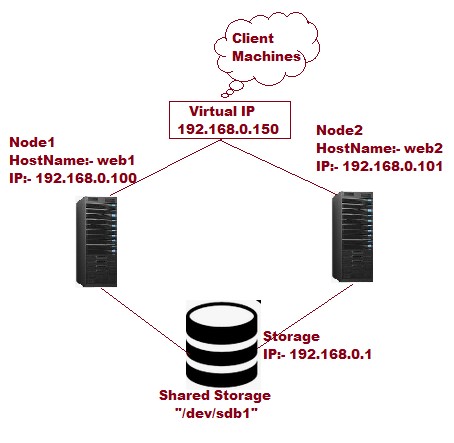
Lab setup:-
Node1:- web1
IP:- 192.168.0.100
Hostname:- web1.feenixdv.com web1
Node2:- web2
IP:- 192.168.0.100
Hostname:- web1.feenixdv.com web1
Cluster Virtual IP:- 192.168.0.150
iSCSI(LUN):- /dev/sdb1
Node basic setup:-
Setup hostname
Check firewall and SELinux (In my lab its enabled)
Yum setup
Setup hostname on both node
[root@localhost ~]# hostnamectl set-hostname web1
Cross entry for each node and also check both node ping to each other with hostname.
[root@web1 ~]# cat /etc/hosts
192.168.0.100 web1.feenixdv.com web1
192.168.0.101 web2.feenixdv.com web2
127.0.0.1 localhost localhost.localdomain localhost4 localhost4.localdomain4
[root@web1 ~]# ping web1
PING web1.feenixdv.com (192.168.0.100) 56(84) bytes of data.
64 bytes from web1.feenixdv.com (192.168.0.100): icmp_seq=1 ttl=64 time=0.038 ms
64 bytes from web1.feenixdv.com (192.168.0.100): icmp_seq=2 ttl=64 time=0.042 ms
^C
— web1.feenixdv.com ping statistics —
2 packets transmitted, 2 received, 0% packet loss, time 999ms
rtt min/avg/max/mdev = 0.038/0.040/0.042/0.002 ms
In cluster setup we need some package with is presend in CD-ROM or ISO. Not in package folder(RHEL7). In “/mnt/addons/HighAvailability/” if CD-ROM mounted on “/mnt”.
We need to copy all the package(Package and HighAvailability) on one node and configure YUM using FTP so both node can install all package.
Going to install “iscsi-initiator-utils” on both node so node and mount shared storage “/dev/sdb1”.
[root@web1 ~]# yum install iscsi-initiator-utils -y
Loaded plugins: langpacks, product-id, search-disabled-repos, subscription-manager
This system is not registered to Red Hat Subscription Management. You can use subscription-manager to register.
Resolving Dependencies
–> Running transaction check
—> Package iscsi-initiator-utils.x86_64 0:6.2.0.873-35.el7 will be installed
–> Processing Dependency: iscsi-initiator-utils-iscsiuio >= 6.2.0.873-35.el7 for package: iscsi-initiator-utils-6.2.0.873-35.el7.x86_64
–> Running transaction check
—> Package iscsi-initiator-utils-iscsiuio.x86_64 0:6.2.0.873-35.el7 will be installed
–> Finished Dependency Resolution
Dependencies Resolved
============================================================================================================================================================================================
Package Arch Version Repository Size
.
.
.
Complete!
[root@web1 ~]#
Now going to discover storage from storage server.
[root@web1 ~]# iscsiadm -m discovery -t st -p 192.168.0.1
192.168.0.1:3260,1 iqn.2018-12.com.feenix:disk1
We found one storage. Put storage details in “initiatorname.iscsi”.
[root@web1 ~]# vim /etc/iscsi/initiatorname.iscsi
[root@web1 ~]# cat /etc/iscsi/initiatorname.iscsi
InitiatorName=iqn.2018-12.com.feenix:disk1
[root@web1 ~]# systemctl enable iscsi
[root@web1 ~]# systemctl restart iscsi
Login into target Storage. Here we can see some issue in login. In this case just restart node and try after reboot.
[root@web1 ~]# iscsiadm -m node -T iqn.2018-12.com.feenix:disk1 -p 192.168.0.1 -l
Logging in to [iface: default, target: iqn.2018-12.com.feenix:disk1, portal: 192.168.0.1,3260] (multiple)
iscsiadm: Could not login to [iface: default, target: iqn.2018-12.com.feenix:disk1, portal: 192.168.0.1,3260].
iscsiadm: initiator reported error (24 – iSCSI login failed due to authorization failure)
iscsiadm: Could not log into all portals
[root@web1 ~]# reboot
[root@web1 ~]# fdisk -l
Disk /dev/sda: 21.5 GB, 21474836480 bytes, 41943040 sectors
Units = sectors of 1 * 512 = 512 bytes
Sector size (logical/physical): 512 bytes / 512 bytes
I/O size (minimum/optimal): 512 bytes / 512 bytes
Disk label type: dos
Disk identifier: 0x00019b5f
Device Boot Start End Blocks Id System
/dev/sda1 * 2048 616447 307200 83 Linux
/dev/sda2 616448 4810751 2097152 82 Linux swap / Solaris
/dev/sda3 4810752 41943039 18566144 83 Linux
Disk /dev/sdb: 2147 MB, 2147483648 bytes, 4194304 sectors
Units = sectors of 1 * 512 = 512 bytes
Sector size (logical/physical): 512 bytes / 512 bytes
I/O size (minimum/optimal): 512 bytes / 4194304 bytes
Disk label type: dos
Disk identifier: 0xd328a924
Device Boot Start End Blocks Id System
/dev/sdb1 8192 4194303 2093056 83 Linux
Here you can see “/dev/sdb1” accessible from node. Something check from other node also.
Through high availability here we are going to configure apache web server so first we need to install apache on both node.
[root@web1 ~]# yum install httpd -y
Update “httpd.conf” with below entry so it can we monitored. Put these entry in bottom of file.
[root@web1 ~]# vim /etc/httpd/conf/httpd.conf
.
.
<Location /server-status>
SetHandler server-status
Order deny,allow
Deny from all
Allow from 127.0.0.1
</Location>
Now mount storage on “/var/www/” and create one example page. Because SELinux enabled in so we need to restore same context for “html folder and index.html”.
After that allow on firewall and reload configuration.
[root@web1 ~]# mount /dev/sdb1 /var/www/
[root@web1 ~]# mkdir /var/www/html
[root@web1 ~]# vim /var/www/html/index.html
[root@web1 ~]# getenforce
Enforcing
[root@web1 ~]# restorecon -R /var/www/
[root@web1 ~]# umount /var/www/
[root@web1 ~]# firewall-cmd –permanent –add-service=http
success
[root@web1 ~]# firewall-cmd –reload
success
Now configure HA cluster. For that we need to install some package.
Also add in firewall.
[root@web1 ~]# yum install pcs fence-agents-all -y
[root@web1 ~]# firewall-cmd –permanent –add-service=high-availability
success
[root@web1 ~]# firewall-cmd –reload
Success
(On both node) To cross verify you can check “hacluster” user present or not.
If present then installation is ok. Otherwise you need to re-check all steps.
Now set password for hacluster user. Make sure password are same on both node.
[root@web1 ~]# cat /etc/passwd |grep hacluster
hacluster:x:189:189:cluster user:/home/hacluster:/sbin/nologin
[root@web1 ~]# passwd hacluster
Changing password for user hacluster.
New password:
BAD PASSWORD: The password is shorter than 8 characters
Retype new password:
passwd: all authentication tokens updated successfully.
Start “pcsd” services and enable it.
[root@web1 ~]# systemctl start pcsd
[root@web1 ~]# systemctl enable pcsd
Created symlink from /etc/systemd/system/multi-user.target.wants/pcsd.service to /usr/lib/systemd/system/pcsd.service.
Authenticate all available node. In my lab setup we have only two node(web1 and web2).
[root@web1 ~]# pcs cluster auth web1 web2
Username: hacluster
Password:
web2: Authorized
web1: Authorized
setup cluster setting on both node(run only one node)
[root@web1 ~]# pcs cluster setup –start –name feenixdv_web web1 web2
Destroying cluster on nodes: web1, web2…
web1: Stopping Cluster (pacemaker)…
web2: Stopping Cluster (pacemaker)…
web1: Successfully destroyed cluster
web2: Successfully destroyed cluster
Sending cluster config files to the nodes…
web1: Succeeded
web2: Succeeded
Starting cluster on nodes: web1, web2…
web2: Starting Cluster…
web1: Starting Cluster…
Synchronizing pcsd certificates on nodes web1, web2…
web2: Success
web1: Success
Restarting pcsd on the nodes in order to reload the certificates…
web2: Success
web1: Success
[root@web1 ~]# pcs cluster enable –all
web1: Cluster Enabled
web2: Cluster Enabled
check status of cluster.
[root@web1 ~]# pcs cluster status
Cluster Status:
Stack: corosync
Current DC: web2 (version 1.1.15-11.el7-e174ec8) – partition with quorum
Last updated: Thu Dec 27 06:48:47 2018 Last change: Thu Dec 27 06:47:46 2018 by hacluster via crmd on web2
2 nodes and 0 resources configured
PCSD Status:
web1: Online
web2: Online
Check pacemaker status.
[root@web1 ~]# pcs status
Cluster name: feenixdv_web
WARNING: no stonith devices and stonith-enabled is not false
Stack: corosync
Current DC: web2 (version 1.1.15-11.el7-e174ec8) – partition with quorum
Last updated: Thu Dec 27 06:49:03 2018 Last change: Thu Dec 27 06:47:46 2018 by hacluster via crmd on web2
2 nodes and 0 resources configured
Online: [ web1 web2 ]
No resources
Daemon Status:
corosync: active/enabled
pacemaker: active/enabled
pcsd: active/enabled
Now we are going to create three resources.
For system file(/dev/sdb1), for cluster VIP, apache config file and status.
All these resources are grouping with apache(–group apache).
[root@web1 ~]# pcs resource create HTTP_Mount_Point filesystem device="/dev/sdb1" directory="/var/www/" fstype="ext4" –group apache
[root@web1 ~]# pcs resource create HTTP_VIP IPaddr2 ip=192.168.0.150 cidr_netmask=24 –group apache
[root@web1 ~]# pcs resource create HTTP_URL apache configfile="/etc/httpd/conf/httpd.conf" statusurl="http://127.0.0.1/server-status" –group apache
Because the node level fencing configuration depends heavily on your environment, we will disable it for this tutorial.
[root@web1 ~]# pcs property set stonith-enabled=false
Note: If you plan to use Pacemaker in a production environment, you should plan a STONITH implementation depending on your environment and keep it enabled.
Now you can see all resources are added and started.
[root@web1 ~]# pcs status
Cluster name: feenixdv_web
Stack: corosync
Current DC: web2 (version 1.1.15-11.el7-e174ec8) – partition with quorum
Last updated: Thu Dec 27 07:04:10 2018 Last change: Thu Dec 27 07:03:58 2018 by root via cibadmin on web1
2 nodes and 3 resources configured
Online: [ web1 web2 ]
Full list of resources:
Resource Group: apache
HTTP_Mount_Point (ocf::heartbeat:Filesystem): Started web1
HTTP_VIP (ocf::heartbeat:IPaddr2): Started web1
HTTP_URL (ocf::heartbeat:apache): Started web1
Daemon Status:
corosync: active/enabled
pacemaker: active/enabled
pcsd: active/enabled
[root@web1 ~]#
Migrate_Logical_Volume_To_Another_Disk
Migrate_Logical_Volume_To_Another_Disk
In this example, we have one Logical Volume(lv0) which belongs from vg0 on physical drive/partition “/dev/sdb1”.
Here we are going to migrate “lv0” to another disk “/dev/sdb2”.
First, we check particular Logical Volume present on which drive. Here we can see it on “/dev/sdb1”.

Now add new disk “/dev/sdb2” in same Volume Group(vg0) with “vgextend” command.

Create mirroring of current Logical Volume to the new disk.

Now remove old disk “/dev/sdb1” and check all configuration on right disk and working properly. No need to un-mount during all activity.

Check mount pint and data.

Everything is ok.
Restore_Deleted_Logical_Volume
Restore deleted Logical Volume.
In this example, I have below configuration on the Linux box.
OS:- Linux rhel7 3.10.0-229.el7.x86_64
LVM details:-
- lv0 on vg0
- lv1 on vg1
For more details, you can use “lvs –ao +devices”.
For testing purpose I mounted “/dev/vg0/lv0” under “/data” directory and create on file with some content.

Now I am going to create a scenario for practical means deleting one Logical Volume “lv0” and after that try to access or mount.

For each and every action on LVM, create a backup of the configuration file. Using these backups we can restore the configuration of the volume group. Is data also… depend on the situation.

Now going to restore from backup.
For that, we need to identify which backup file is used to restore Volume Group. For that, we use below process.

Now restore vg configuration with the backup file.
After restoring the lv in “inactive” state. We can see using “lvscan” command. To activate use “lvchange –ay /dev/vg0/lv0”.

Now you can see everything is OK.
Initialize_New_HDD_Without_Restart
Initialize hard drive without restarting in Linux
In this example you can see, we have only one hard disk interface “/dev/sda”.

Now I am going to add one extra hard disk(In my case I am using VMWare workstation)

After successfully added without a reboot, hard disk not initialize. We can see in the screenshot.

With below command, we can initialize hard disk without restart Linux box.
[root@rhel7 ~]# echo "- – -" > /sys/class/scsi_host/host0/scan
You can see all process in below screenshot.

Done.
Shell_Script
Shell script for simple addition, subtraction and multiplication using case and function.
####################################################################
#!/bin/sh
#Script depend on three argument. first two are values and last one is operation
#Add Function for each operation
add() {
result=`expr $1 + $2`;
echo "Addition of $1 and $2 :- $result";
}
sub() {
result=`expr $1 – $2`;
echo "Subtraction of $1 and $2 :- $result";
}
mult() {
result=`expr $1 \* $2`;
echo "Multiply of $1 and $2 :- $result";
}
#Checking case with third value.
#Pass two argument $1 and $2 to function
case $3 in
add )
add $1 $2 ;;
sub )
sub $1 $2 ;;
mult )
mult $1 $2 ;;
all )
add $1 $2 ;
sub $1 $2 ;
mult $1 $2 ;;
esac
—————————————————-
Output look like:-
[root@rhel7 Script]# ./cash.sh 2 30 all
Addition of 2 and 30 :- 32
Subtraction of 2 and 30 :- -28
Multiply of 2 and 30 :- 60
####################################################################
PXE_With_Kick-Start
PXE Boot with kick-start configuration.
Configure PXE server.
[root@feenixdv_pix tftpboot]# cat /etc/redhat-release
CentOS Linux release 7.1.1503 (Core)
Step 1 :-
Install CentOS/RHEL on the virtual machine or any physical machine.
Step 2 :-
Install some prerequisite on PXE Server.
- vsftpd
- DHCP
- xinted
- tftp-server
- syslinux
Step 3 :-
To install these package configure local YUM repository with FTP.
YUM configuration:-
1st copy all data from CDROM to “/var/ftp/pub” location
Next update yum repo file.
[root@feenixdv_pix tftpboot]# mount /dev/cdrom /mnt/
[root@feenixdv_pix tftpboot]# cat /etc/yum.repos.d/my.repo
[FTP]
name= feenixdv
baseurl=ftp://192.168.43.206/pub
gpgcheck=0
enable=1
Note:- To use this setting “vsftpd” must be install first and start “vsftpd” service.
Step 4 :-
-
Install all package after yum configuration.
- yum install dhcp –y
- yum install tftp-server
- yum install syslinux
xinted automation installed with syslinux.
Step 5 :-
Now configure DHCP server.
Copy “dhcpd.conf” from from example file.
cat /usr/share/doc/dhcp-4.2.5/dhcpd.conf.example > /etc/dhcp/dhcpd.conf
update “/etc/dhcp/dhcpd.conf” according to network setting.

Step 6 :-
Now configure TFTP-SERVER server.

Then copy and create some configuration file for PXE installation.
[root@feenixdv_pix tftpboot]# cd /var/lib/tftpboot
[root@feenixdv_pix tftpboot]# cp /mnt/isolinux/* . (Copy bootable file from CD)
[root@feenixdv_pix tftpboot]# mkdir pxelinux.cfg
[root@feenixdv_pix tftpboot]# vim pxelinux.cfg/default
Configure «default».

Step 7 :-
Now configure kick-start file.
Copy this.
[root@feenixdv_pix tftpboot]# cp /root/anaconda-ks.cfg /var/ftp/pub/ks.cfg
Need to add url

Then copy “pxelinux.0” which was define in dhcpd.conf
cp /usr/share/syslinux/pxelinux.0 /var/lib/tftpboot/
Step 8 :-
Start all services and check on also.
[root@feenixdv_pix tftpboot]# systemctl restart vsftpd xinetd dhcpd
[root@feenixdv_pix tftpboot]# systemctl enable vsftpd xinetd tftp.service dhcpd
Note:- Cross check firewall and selinux are disabled.
Now install new VM without in boobable media or source disk.

Some advance configuration in PXE for multiple version option.
For example we want to install RHEL5, RHEL6 and RHEL7 using PXE then first need to create same structure in “/var/ftp/pub” directory.
For RHEL5.
- Create directory “/var/ftp/pub/rhel5”
- Copy all package inside directory including ks.cfg, vmlinuz and initrd.img file.
Same for RHEL6 and RHEL7
Now update “/var/lib/tftpboot/pxelinux.cfg/default” and add below entry.
label RHEL_5
menu label Install RedHat 5
kernel rhel5/vmlinuz
append initrd=rhel5/initrd.img ks=ftp://192.168.43.206/pub/rhel5/ks.cfg repo=ftp://192.168.43.206/pub/rhel5
label RHEL_6
menu label Install RedHat 6
kernel rhel6/vmlinuz
append initrd=rhel6/initrd.img ks=ftp://192.168.43.206/pub/rhel6/ks.cfg repo=ftp://192.168.43.206/pub/rhe6
label RHEL_7
menu label Install RedHat 7
kernel rhel7/vmlinuz
append initrd=rhel7/initrd.img ks=ftp://192.168.43.206/pub/rhel7/ks.cfg repo=ftp://192.168.43.206/pub/rhel7
Now again restart all services. After that we have below boot option on PXE boot.
